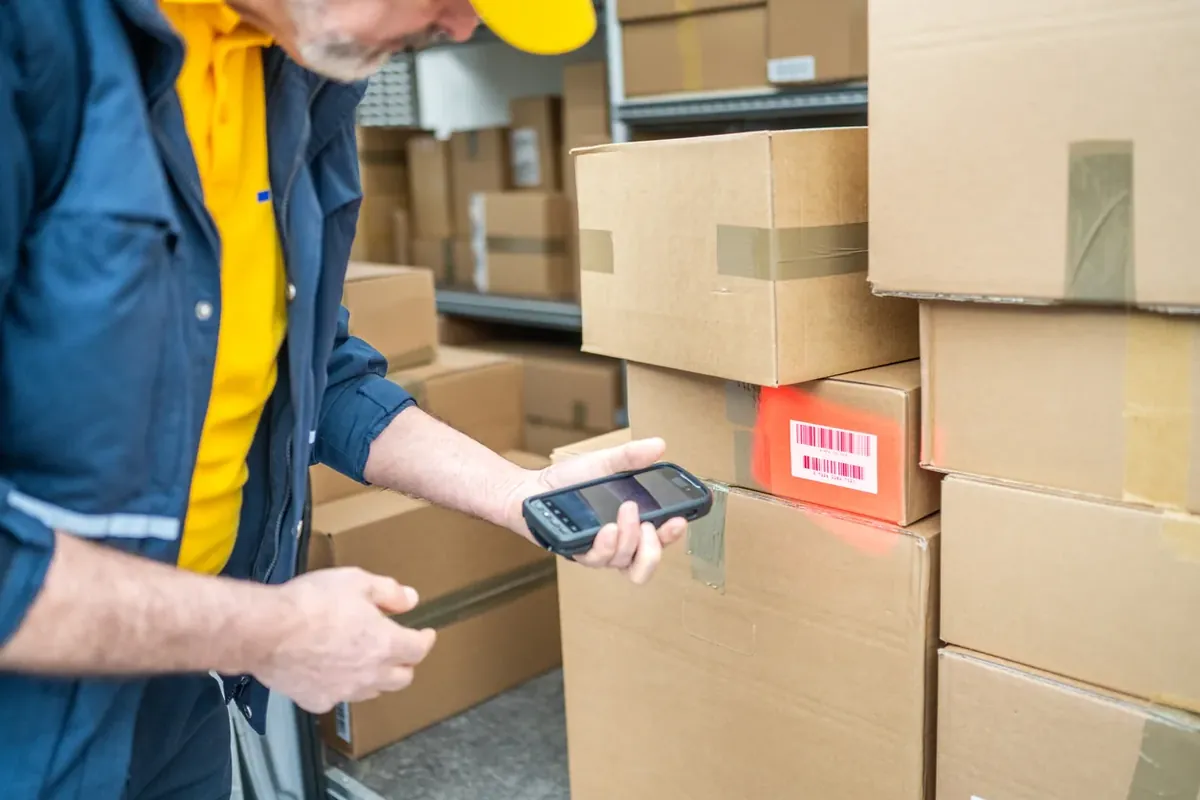
If you sell, store, or ship physical products, sooner or later you have to barcode them. Maybe a retailer is asking for scannable labels, maybe your warehouse team is tired of typing SKUs by hand, or maybe you have simply outgrown the point where one person can remember where everything lives. Whatever pushed you here, the goal is the same: get a barcode on every product so it can be scanned instead of guessed.
There are two parts to it. First is the barcode itself, the number encoded in the bars. For retail, that usually means a GS1 UPC or GTIN your customers' systems recognize. For internal use, it can just be your own SKU or lot number. Second, and this is where most businesses get stuck, is printing labels that survive your environment and scan on the first pass, every time.
That second part comes down to the printer you choose. A cheap desktop unit is fine for a handful of labels a day, but it fails fast in a freezer, on a high-volume pick line, or anywhere labels take a beating. Choose wrong and you are reprinting smeared labels and chasing failed scans within a month.
Below, we compare the barcode label printers that hold up in real manufacturing and distribution operations, by print method, durability, volume, and cost, so you can match the printer to how you actually work.
First, the print method: direct thermal vs thermal transfer
Almost every barcode label printer uses one of two methods, and this choice matters more than the brand on the box.
Direct thermal printers use heat-sensitive label stock and no ribbon. The printhead darkens the label directly. They are simpler and cheaper to run day to day, but the labels fade over time and darken when exposed to heat, sunlight, or friction. That makes direct thermal a good fit for short-lived labels: shipping labels, receiving tags, anything scanned within a few months and then thrown away.
Thermal transfer printers melt ink from a ribbon onto the label. The result lasts for years and stands up to heat, cold, chemicals, and abrasion. You pay for ribbons and a little more complexity, but you get a label that survives a freezer, a chemical drum, or an asset tag that has to stay readable for a decade. If the label needs to outlive the week, use thermal transfer.
A quick rule: if the label is disposable, direct thermal. If it has to endure, thermal transfer.
Then the form factor: desktop, industrial, or mobile
Print method decides label durability. Form factor decides whether the printer keeps up with your volume and environment.
Match the printer to how you work
You do not need the most expensive printer. You need the one that fits your volume, your labels, and your environment. Start here:
If you...ChoosePrint a few labels a day in an officeDesktop, direct thermalRun a high-volume pick and pack lineIndustrial, thermal transferLabel products at receiving or put-awayMobile printerNeed labels that survive freezers or chemicalsThermal transfer, any form factorPrint short-life shipping labels onlyDirect thermal, desktop or industrial
Two specs worth checking before you buy:
The mistakes that cost you
The bottom line
The printer only pays off when the barcode it prints feeds something. A scannable label on every product is the foundation, but the value shows up when a scan updates your inventory in real time instead of a person keying it in later.
That is the part most businesses miss. Getting barcodes on your products is step one. Connecting the scans to your warehouse and ERP system, so inventory, picking, and shipping run off verified data, is where the accuracy and labor savings come from.
If you are barcoding your products as the first step toward a more connected warehouse, talk to Endpoint. We help manufacturers and distributors turn barcode scanning into real-time inventory inside Sage and Acumatica, not just labels on boxes.